

Introduction
The SAP connector has 3 main functions:
-
It can retrieve incoming invoices from the Routty platform and deliver them to PDAP (Process Director for Accounts Payable).
-
The SAP connector can deliver outbound invoices to Routty.
-
The SAP connector can export master data from SAP that can be uploaded to Routty.
The SAP connector is a tenant specific connector which means that for each tenant that wants to use this connector, the implementation partner needs to create a configuration in Routty.
As this is a connector that is installed on the SAP system of the tenant, the implementation partner will also need to do this installation and configure the API key created by Routty in this installed package.
Configuration in SAP standard
RFC destinations
Depending on whether both document transfer directions are to be used, two or three RFC destinations are to be created:
-
RFC destination for API handling
-
RFC destination for inbound documents (if required)
-
RFC destination for outbound documents (if required)
Create them in the HTTP Connections to External Server branch.
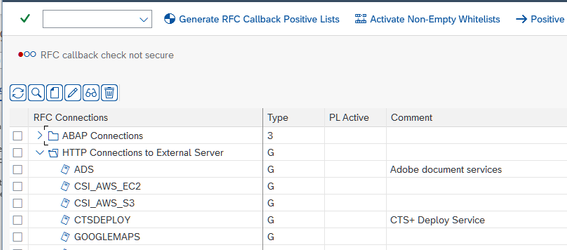
Use the URLs provided by the system administrator. Those are currently valid:
-
API handling: admin-express.routty.io
-
inbound documents: export.routty.io
-
outbound documents: import.routty.io
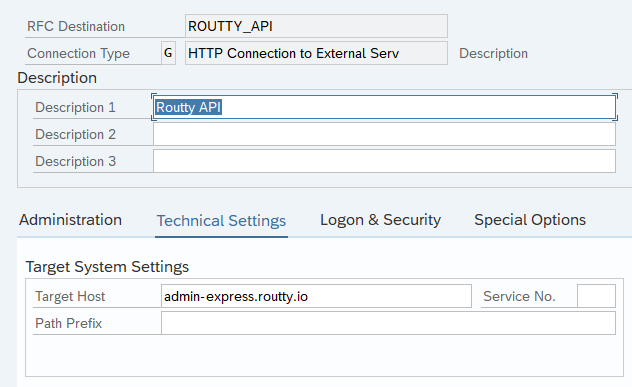
In the destination definition it suffice to provide:
-
RFC Destination (create a meaningful names here, like ROUTTY_API, ROUTTY_IMPORT and ROUTTY_EXPORT)
-
Connection type: G
-
Description
-
Target Host - provided by the system administrator
-
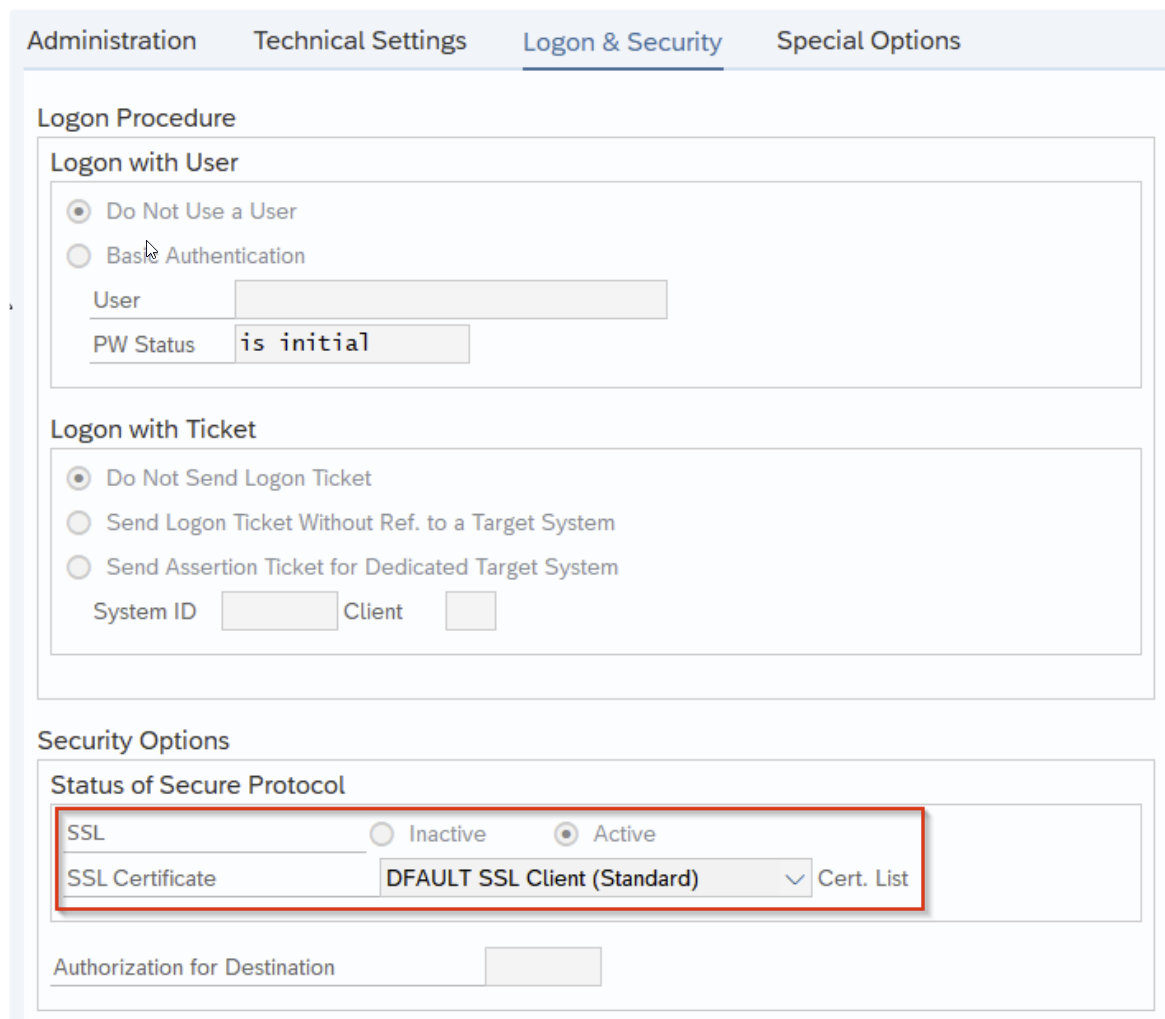
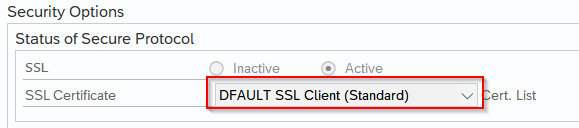
SSL: Active (if required)
-
SSL Certificate (if SSL is active): DEFAULT SSL Client (Standard)
SSL Certificates
You need to install SSL root certificate to enable the RFC to connect to the server via HTTPS.
For API and document transfer there should be one root certificate from CA GlobalSign.
The certificate will be provided together with installation files for the Routty SAP Package or you can download it from the web site directly. It can be for example the https://import.routty.io/ website.
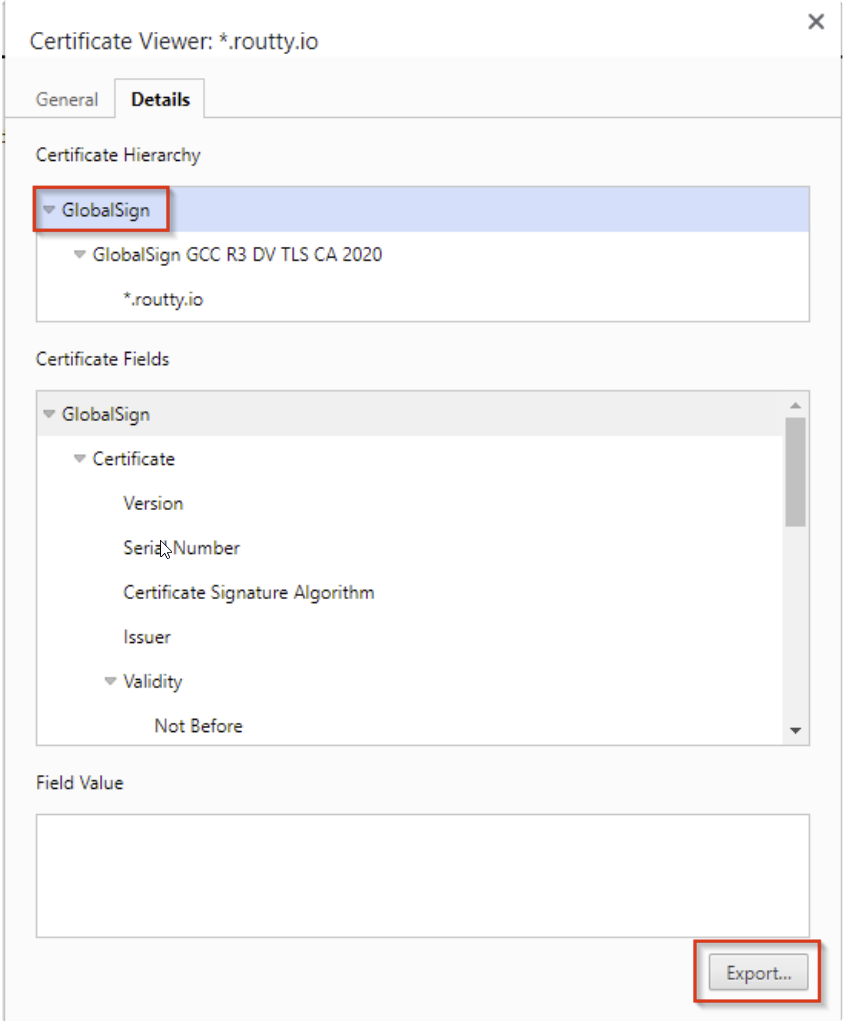
Verify the certificate branch configured in the RFC destination.
Install the certificate in the SAP system using the STRUST transaction in the branch chosen in the RFC connection.
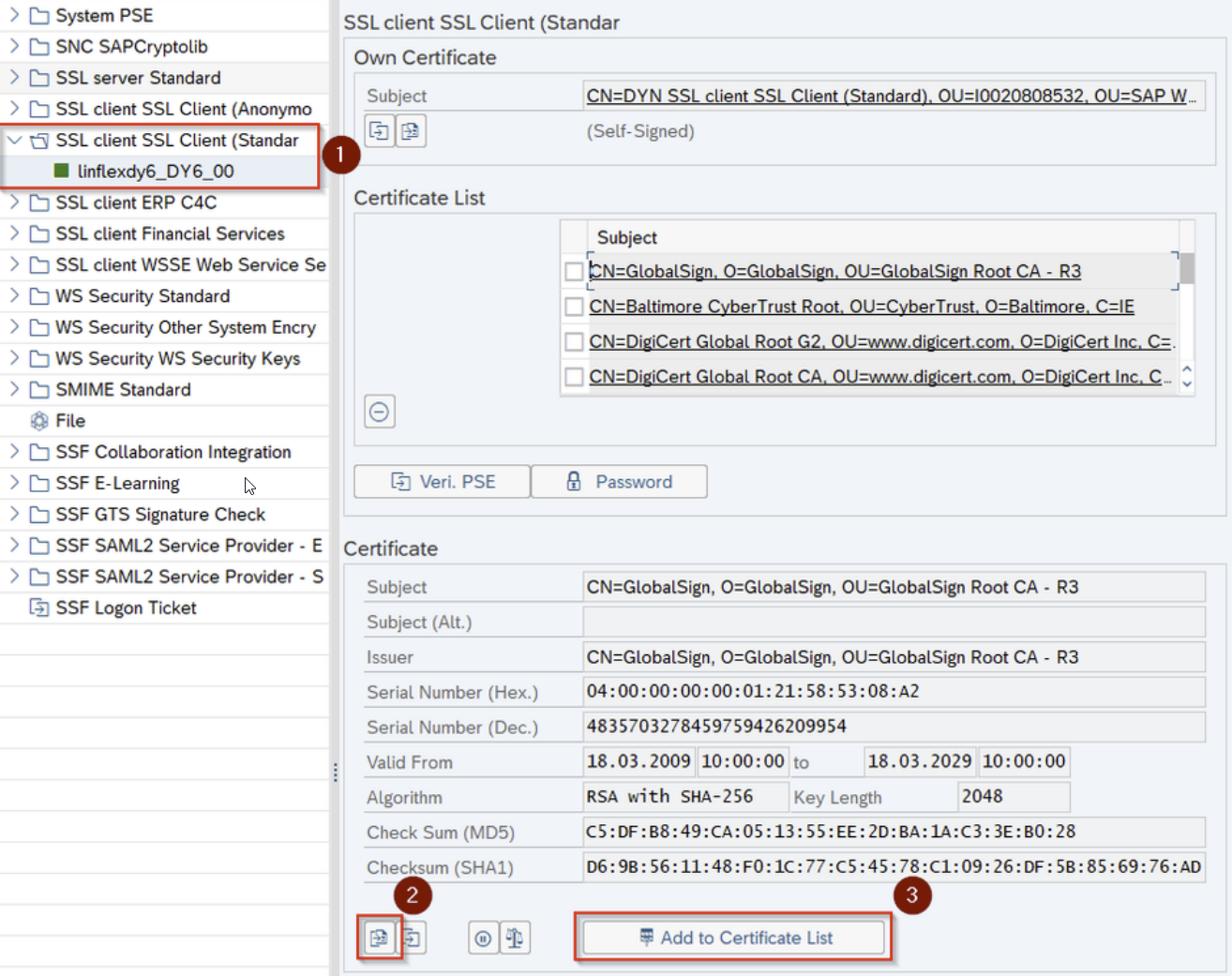
Import the certificate and add it to the certification list.
In case the SSL connection cannot be established you can also try to install intermediate certificates (those between the root and the site one) or even the site certificate. The last option is however not recommended, since this certificate will be the first to expire and can be replaced by the site administrator.
In case you are receiving errors like: “Server certificate does not match supplied TargetHostname SapSSLSessionStartNB()==SSSLERR_SERVER_CERT_MISMATCH”, the SNI mechanism seems to be inactive. Server Name Indication (SNI) is a TLS extension that enables connections to virtual servers, in which multiple servers for different network names are hosted at a single underlying network address. To enable SNI in the SAP system, switch the following parameter in the RZ11 transaction to TRUE:
icm/HTTPS/client_sni_enabled
License
A license key is provided by the Routty SAP team, for specific Product (X - Routty), SAP system ID, SAP installation number and License type (usually F - full). Configure the license key in the customer system using transaction ZDYN_LICENSE:

Configuration in Routty SAP Package
Start the Routty SAP Package with transaction ZDYN_WS_ROUTTY_EXP.
Connections (mandatory)
Choose the first button in the report toolbar.
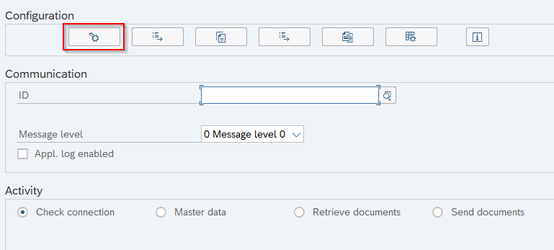
Create connection definitions with:
-
System ID
-
Connection ID (create a meaningful identifier here)
-
RFC Destination - for API
-
Doc. RFC Destination - for document transfer, inbound or outbound
-
API Key – key specific for the service, provided by the system administrator
-
API prefix – string specific for the service name, provided by the system administrator
by default:-
connector-api/input-api – for outbound document transfer
-
connector-api/output-api – for inbound document transfer
-
-
Transformation – XSL transformation for the inbound documents.
There are existing standard transformations in the ZDYN_WS_ROUTTY_BASE package, like (depending on the Import type):
PD = ZDYN_ROUTTY_IV_TO_PD
ZDYN_ROUTTY_IV_TO_PD_V1 – currently valid
IDOC= ZDYN_ROUTTY_TO_IDOC
ZDYN_ROUTTY_TO_IDOC_V1
ZDYN_ROUTTY_TO_IDOC_V2 – currently valid
Attachment Transformation – (optional) XSL transformation in case the one from the Transformation field cannot extract attachments, for example because it creates an IDOC.
If it is empty, the one from the Transformation field will be used.
-
Logical file path – only for inbound documents processed as IDOCs
-
Itype – action to be run in case of inbound documents
-

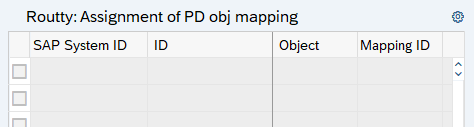
PD mapping (optional)
Only for inbound documents if the standard mapping in PD is to be replaced.
Choose the second button in the report toolbar.
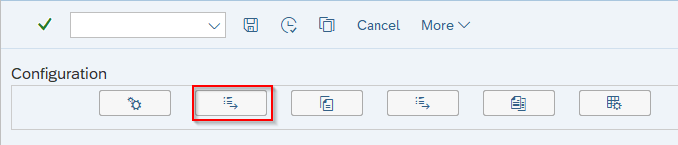
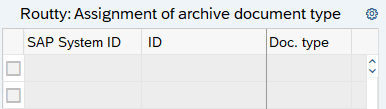
Archive document types (optional)
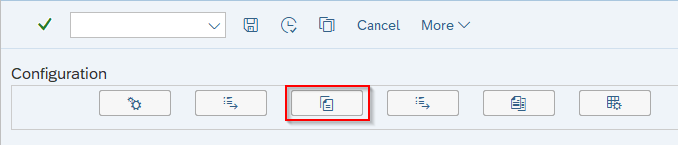
Only for inbound documents if the document are to be processed with IDOCs.
Choose the third button in the report toolbar.
Outbound documents – standard output (NAST) (optional)
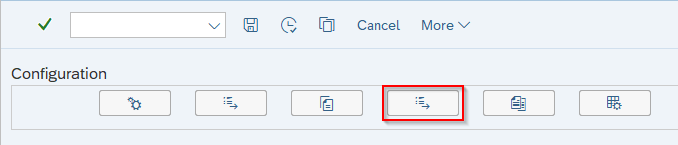
Only for outbound documents if the documents exist in the NAST table.
Choose the forth button in the report toolbar.

Outbound documents – structure mapping (optional)
Only for outbound documents to modify the way SAP fields in structures are mapped to the output structures.
Choose the fifth button in the report toolbar.
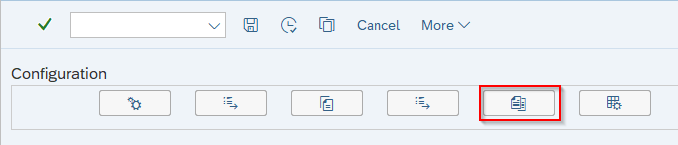
The standard configuration is provided by default. You can modify it by adding new or deactivating existing entries.

Outbound documents – XML mapping (optional)
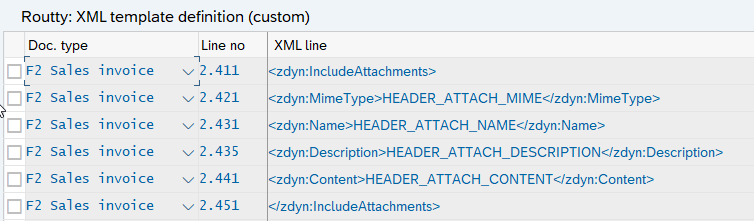
Only for outbound documents to modify the way the output structures are mapped to the output XML.
Choose the sixth button in the report toolbar.
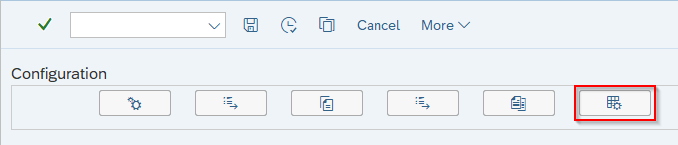
The standard configuration is provided by default. You can modify it by adding new or redefining as well as deactivating existing entries.
User activities
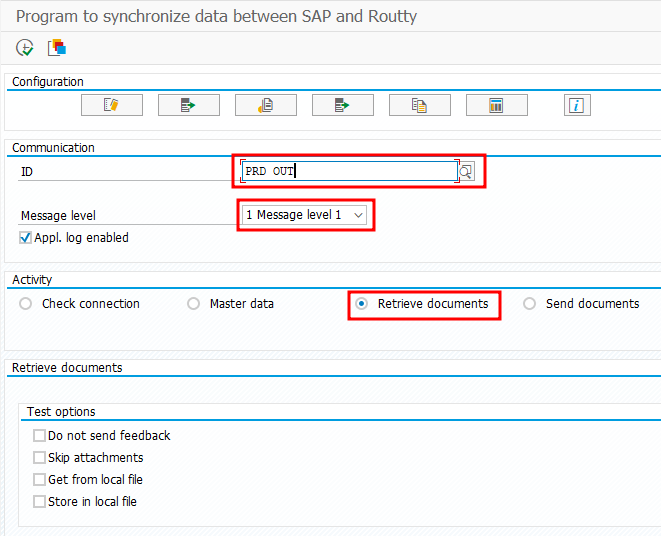
Receving inbound documents
To be able to receive documents from an external system, you need to:
-
choose configuration set (ID)
-
select activity ‘Retrieve documents’
-
optionally increase the ‘Message level’, particulary recommended at the test phase
-
optionally select the ‘Appl. Log enabled’ if you want the messages to be logged
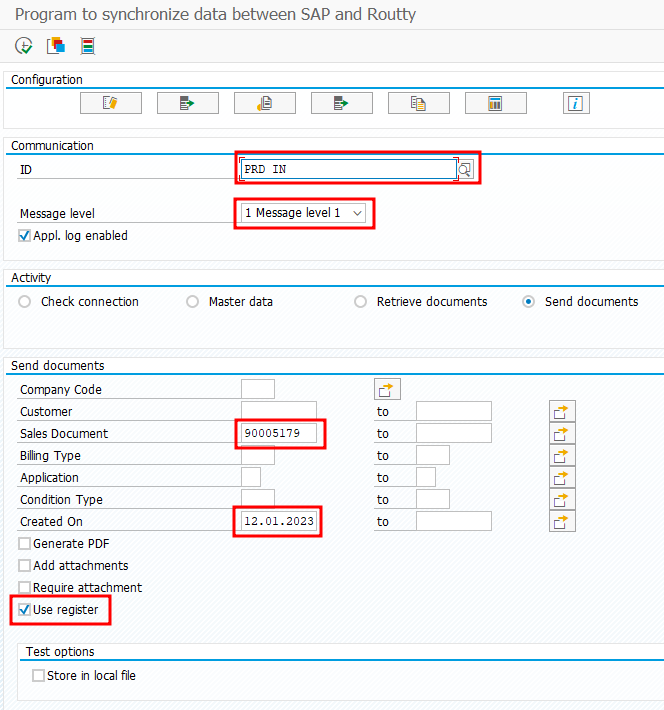
Sending outbound documents
To be able to send documents to an external system, you need to:
-
choose configuration set (ID)
-
select activity ‘Send documents’
-
enter ‘Created on’ date
-
optionally specify ‘Sales Document’ number
-
‘Use register’ flag must be set for prodution usage but in test phase should rather be unset, as it prevents the same document to be send more than once
-
optionally increase the ‘Message level’, particulary recommended at the test phase
-
optionally select the ‘Appl. Log enabled’ if you want the messages to be logged
Functionality
Masterdata export
The following customer master data identifiers are exported:
VAT - VAT registration number
KVK - Chamber of Commerce, used in the Netherlands, its value is taken from SAP customer masterdata fields Location 1 and 2 (according to SAP note 101997)
IBAN - bank account number