

Introduction
Routty SAP Package - Routty AP is a package with various ready to use options to synchronize data between a SAP system and Routty AP.
It's possible to directly upload master data from SAP to the Routty system like Currencies, Payment Terms, Tax codes, General Ledger Accounts, Cost Centers, Projects, internal Orders and Vendors.
Purchase order data including information about delivered and invoiced item quantities can be synchronized to the Routty system.
This can include single goods movements.
Ready for export processed document data including their images can be downloaded to SAP and processed in various ways (IDOC, store as files, push to Process Director, custom SAP processing).
You can leverage the options from SAP transaction SM59 for the specification of a proxy connection. And you can create any kind of Process Director document from the downloaded data, not only an AP document.
The package can be used as well for customers without a Process Director installation. Documents and images can be e.g. directly added as an IDOC or handled by custom code.
This document describes how to configure and use Routty SAP Package - Routty AP and the specific functions that are delivered with it.
Activation and use of Routty SAP Package - Routty AP
This chapter will cover end-to-end guide on how to install and configure Routty SAP Package - Routty AP in your SAP environment.
Transport import
Please check if SAP note 2050393 needs to be applied when you operate on older SAP stacks.
Basis package 740 is required. Older SAP releases require manual adjustments.
Full implementation of Routty SAP Package - Routty AP is based on SAP ABAP and it’s required to import transports provided by Dynatos to make it available on your SAP system. Transports will be provided as External Transports and its import should be done using standard SAP mechanism.
All objects that are carried in transports have prefix ZDYN* and are stored in package ZDYN_WEBSERVICES.
Below are the steps to carry external transport import:
1. Extract the ZIP file in the SAP transport folder (...\TRANS\).
2. The transport files are already in the correct COFILES and DATA subfolders.
3. If it is impossible to extract the transport files directly into the SAP transport folders (for example, because there is no direct access to the file system on the SAP application server), you have to use a binary method to transfer the files (for example, FTP). See SAP OSS note 2050.
4. Start SAP transaction STMS (or use the command line using the TP program).
5. Open the import queue of the SAP system.
6. Go to Extras > Other requests > Add.
7. Add Routty SAP Package transports requests one by one to the import queue in the order listed below.
SAP Standard Configurations
Some of these steps are optional and might only be required depending on requirements from the project.
SM59 - Specify destination to ROUTTY
We recommend to use a destination specified in SM59 instead of direct HTTPS calls.
This option you have to use as well, when you need to communicate across a proxy server.
Create a connection of type G (HTTP Connection to external server).
Target Host is the Routty server
Enter the proxy options if required.
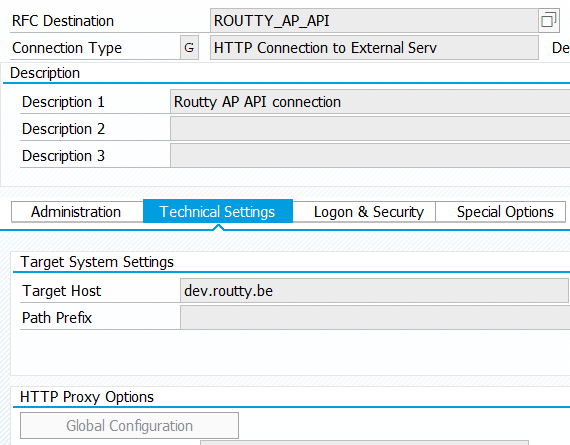
Enable SSL by selecting Active under Logon & Security
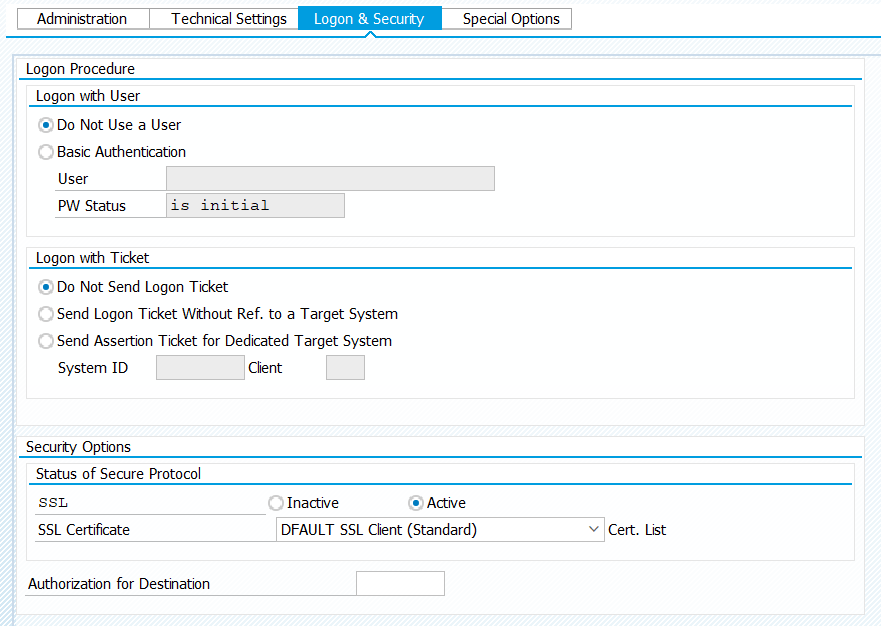
SSL Certificates
You need to install SSL certificates to enable the RFC to connect to the server via HTTPS.
Download the root certificate from the web site first:
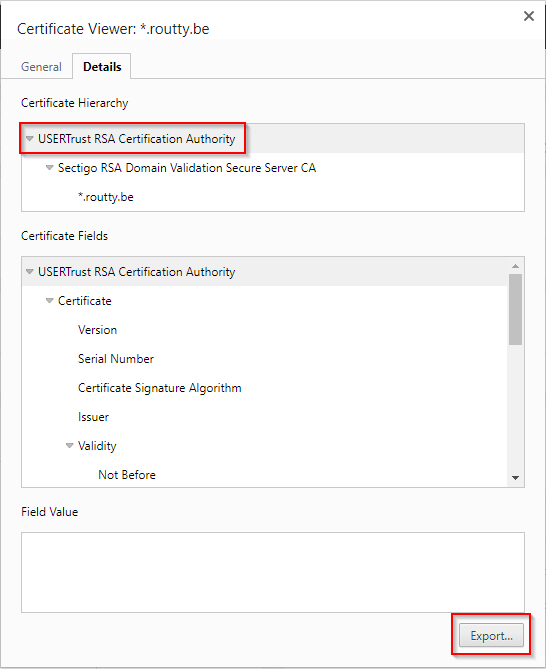
Verify the certificate branch configured in the RFC source
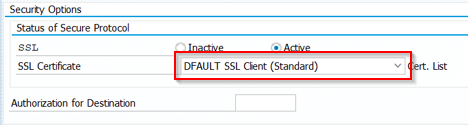
Install the certificate in the SAP system using the STRUST transaction in the branch chosen in the RFC source
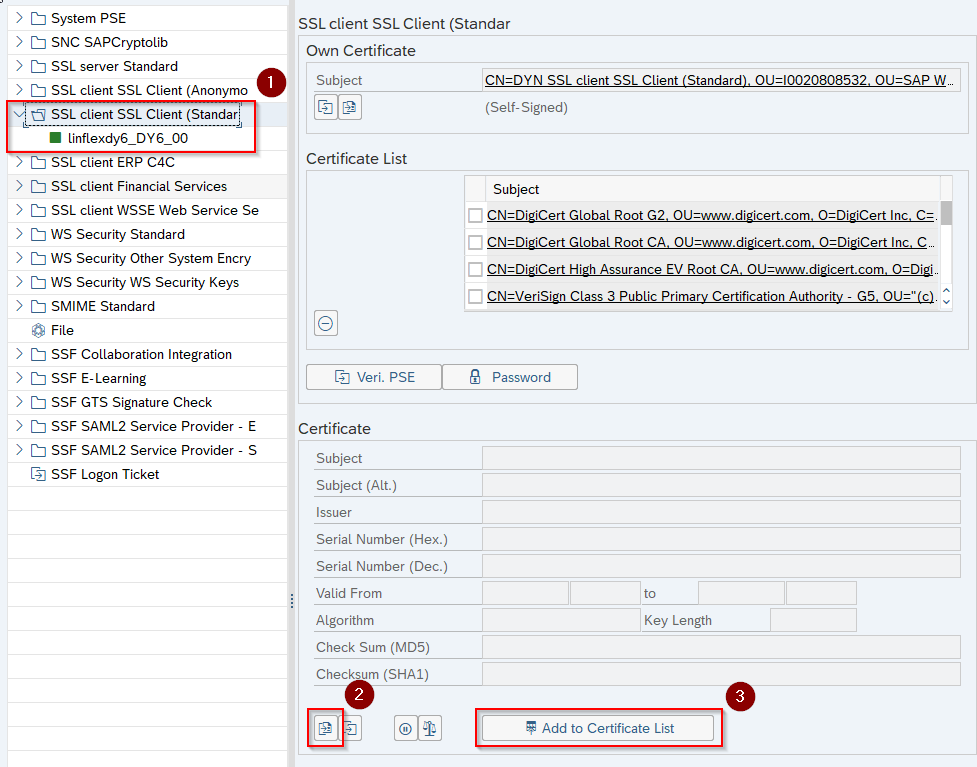
Import the certificate and add it to the certification list.
In case the SSL connection cannot be establish you can also try to install intermediate certificates (those between the root one and the site one) or even the site certificate. The last option is however not recommended, since this certificate will be the first to expire and can be replaced by the site adminstrator.
FILE - Define logical path
When you use the option to store downloaded document data and the image on the SAP server, you need a logical path for this. If the path needs to be created, you have to do this in transaction FILE.
See instructions in SAP Wiki
WEDI – IDOC configuration
When you want to create an IDOC and you use the delivered standard transformation, you have to create:
The logical system definition for ROUTTY in transaction SALE
Basic Settings->Logical Systems->Define Logical System
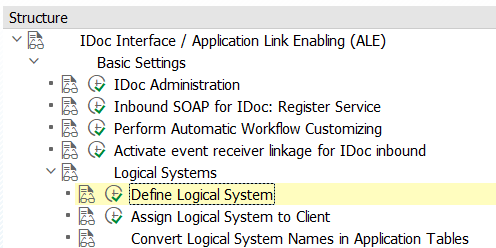
And the following partner definition in transaction WE20
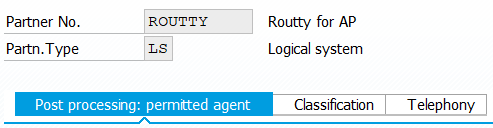
Partner No. ROUTTY
Partn. Type LS
For Inbound parmtrs. create a new entry for:
Message type: INVOIC
Process code: INVL
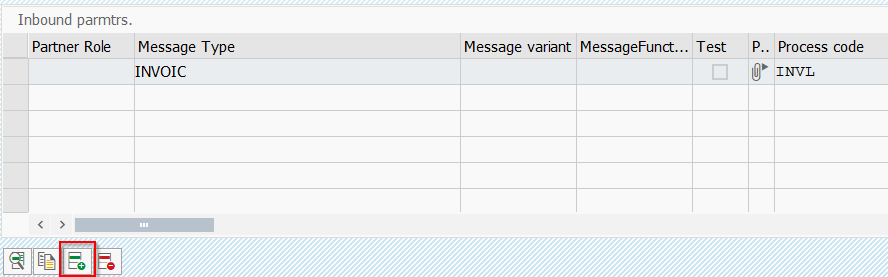
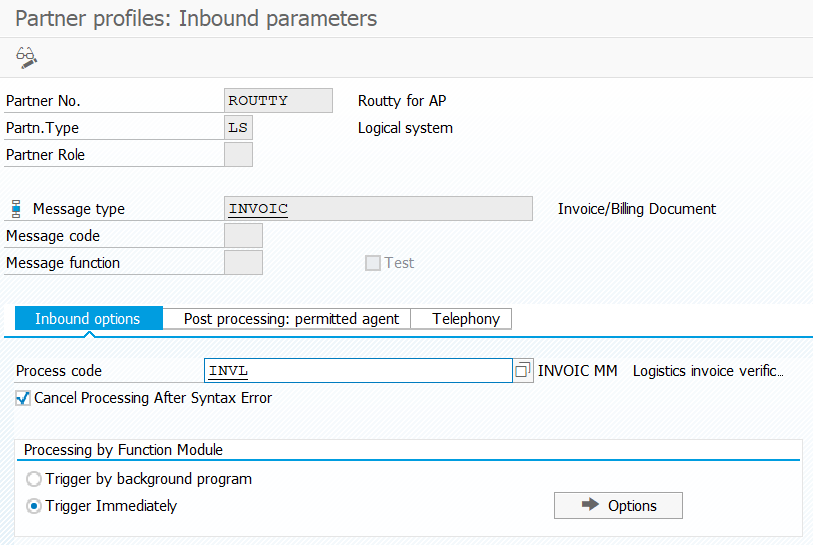
Other process code than the default INVL can be used, for instance when a third party logic already exists for document processing. Process code can be created or edited in the WE42 transaction.
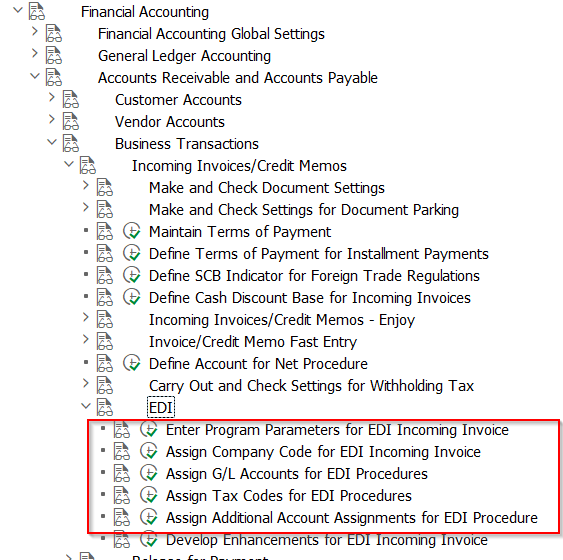
From the SPRO customizing tree you have to maintain several values for the combination LS ROUTTY in case the standard logic is to be used.
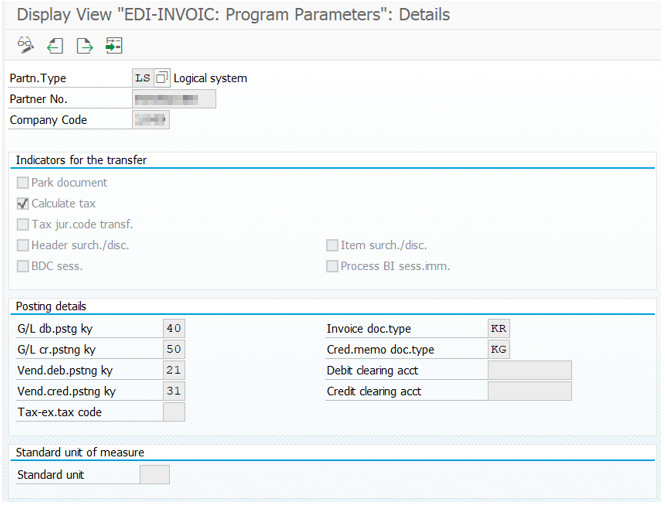
For each company code you have to maintain the EDI program parameters in transaction OBCE
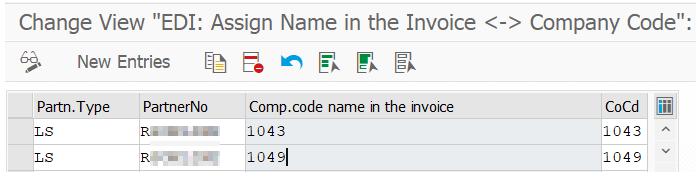
You have to assign the external company code to an internal value
and maintain a GL account for Goods/services
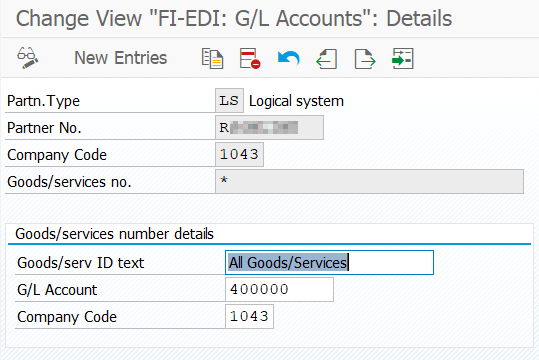
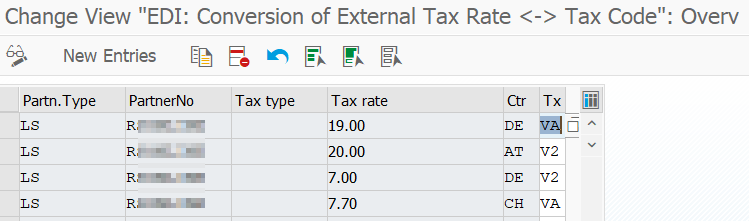
For tax code determination settings need to be applied in transaction OBCD:
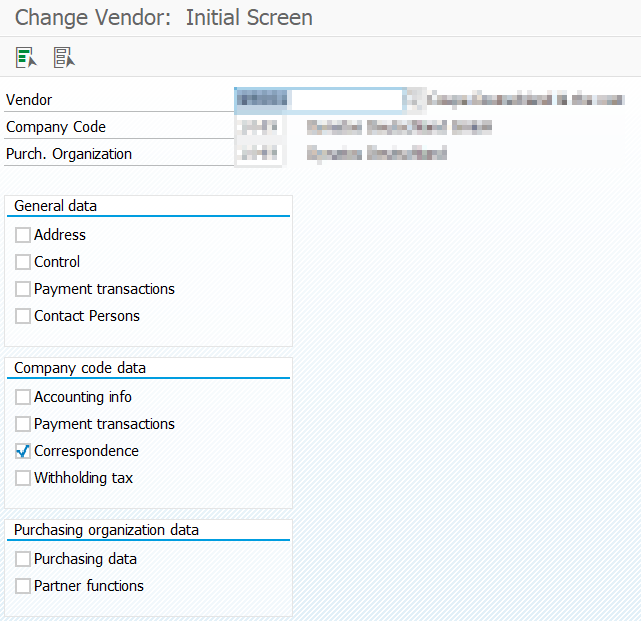
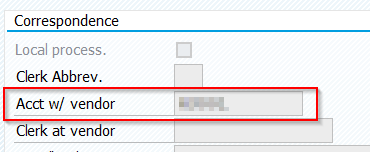
For automatic partner determination the external supplier ID from ROUTTY need to be entered as EIKTO number for the corresponding company code (Correspondence) of transaction XK02 (vendor master data maintenance).
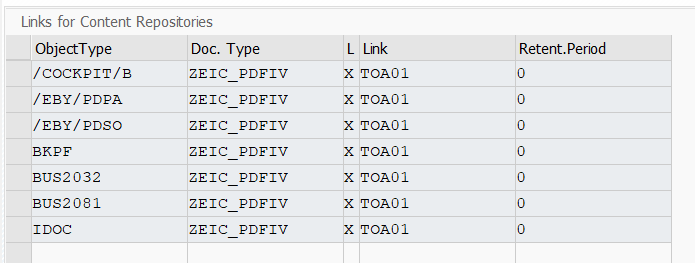
Archive link customizing
For archiving the image you have to create an entry in transaction OAC3 for the used archive document type.
For IDOC storage entries for business object IDOC.
For the Process Director AP entries for /COCKPIT/B.
For Process Director other document types the corresponding ones (e.g. /EBY/PDPA for remittance documents).
And in additional for the posted/target business objects (e.g. BKPF, BUS...).
SAP authorizations
Users who want to configure and/or run synchronizations need authorization for the following transactions:
|
Transaction |
Description |
|
ZDYN_WS_ROUTTY |
Main report |
|
ZDYN_WS_ROUTTY_TGEN |
General configuration |
|
ZDYN_WS_ROUTTY_TARC |
Optional Archive configuration |
|
ZDYN_WS_ROUTTY_TMAP |
Optional configuration for Process Director |
Process Director configuration
When the data should be passed to Process Director some Process Director configuration needs to be added. For creating an PD AP document the required configurations are attached and can be imported using the report /EBY/PDBO_CONFIG_DUMP for Object type IV.
Customer external data models
The configuration included in the embedded XML files will generate the following entries in transaction /EBY/PDBO_VDMOC for the to be created Object type.
When you don't use the XML file content or other Process Director Object types should be created, the entries have to be created manually.
For IV the following entries are required.
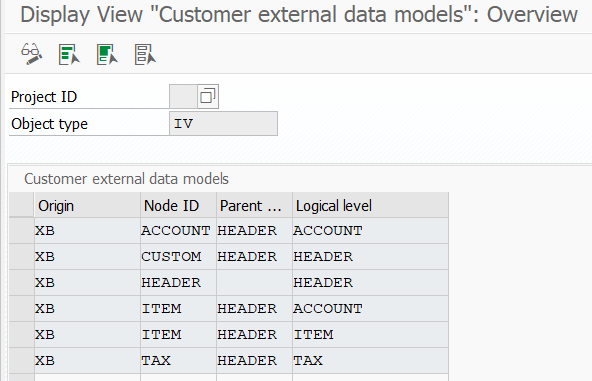
When entries exist, it will be possible to map COCKPIT fields to the corresponding levels
and to map custom fields to custom header fields using the Process Director mapping functionality configured in transaction /EBY/PDBO_VMAPC (see next chapter).
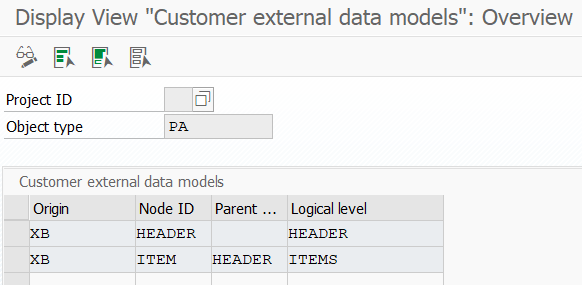
Configuration for other optional document types as remittance documents will be like this. For delivery notes (DN) the same.
Mapping instructions
The embedded XML files contain as well all required entries of transaction /EBY/PDBO_VMAPC where for the corresponding Object type the field mapping needs to be applied.
Origin XB has to be used. Mapping ID by default is ROUTTY but can be changed in the corresponding configuration started from transaction ZDYN_WS_ROUTTY or directly using ZDYN_WS_ROUTTY_TMAP.
NOTE: Only fields available in the technical field list for MST_DOCUMENT can be mapped.
Essential is that the GUID field is properly mapped to block the creation of duplicates!

Custom header fields are stored in the external table CUSTOM as NAME/VALUE pairs.
They can be mapped using Check field and Check value to control the source and target fields.
For example:
Mapping field value from custom field ZFIELD1 to the PD AP field ZDYN_FREEFIELD01 is done using:

Always using the pattern
Node ID = CUSTOM
Check field = NAME
Check value = custom field name
External field name = VALUE
External field names in the mapping configuration equal the internal fieldnames for AP with a few exceptions (CURRENCY, STCEG)

Mapping functions can be used as required.
Main Report
Configuration
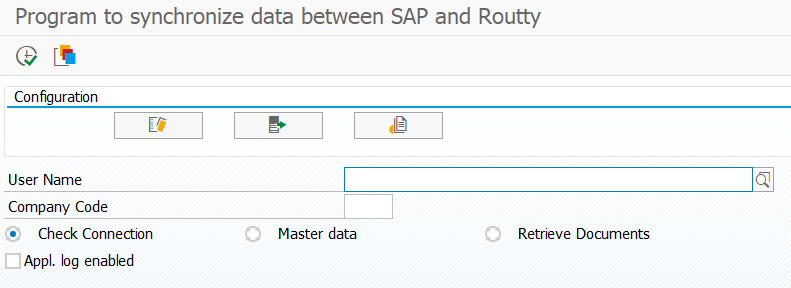
On the top of the report screen which is started by transaction ZDYN_WS_ROUTTY you have three buttons to start the different configuration maintenance dialogs.
ZDYN_WS_ROUTTY_TGEN General configuration
Transaction ZDYN_WS_ROUTTY_TGEN or the left button in the report opens the maintenance dialog for the general configuration.
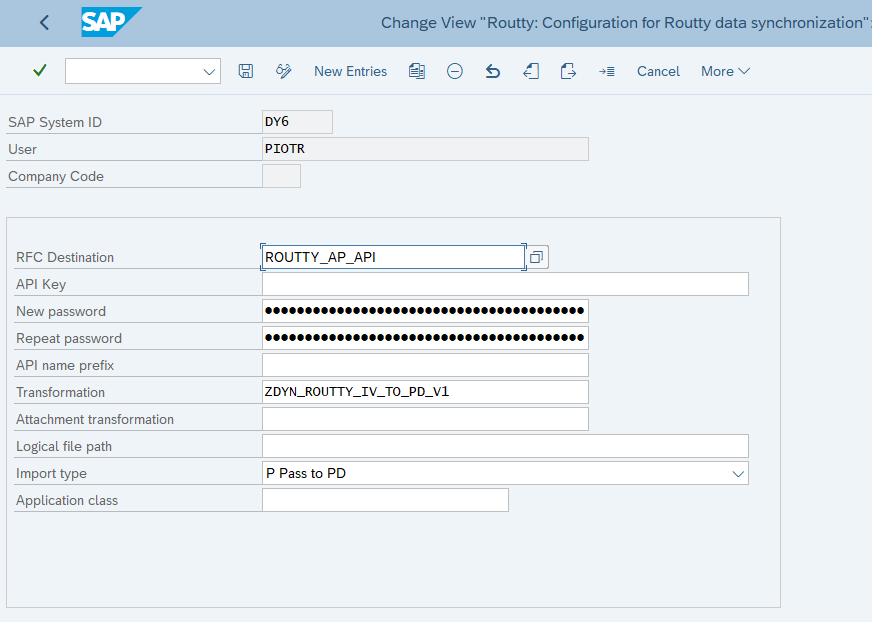
The meaning of the User field depends on the type of ROUTTY system.
It can be:
-
An actual ROUTTY Admin user, in case of single-tenant ROUTTY system and it is used for authorization
-
A configuration identifier without any other meaning, in case of multi-tenant ROUTTY system, API Key is used for authorization in such a case
For the combination of SAP system ID, User and Company Code you maintain:
|
Value |
Description |
|
Destination |
Connection defined in SM59 |
|
Password |
ROUTTY Admin password, required only when the User is an actual user in the single-tenat ROUTTY system |
|
API Key |
API Key defined in the specific tenant in the multi-tenat ROUTTY system |
|
Transformation |
XSLT transformation used to convert the ROUTTY document data. There are existing standard transformations in the ZDYN_WS_ROUTTY_BASE package, like (depending on the Import type): PD = ZDYN_ROUTTY_IV_TO_PD ZDYN_ROUTTY_IV_TO_PD_V1 - currently valid The exact transformation can depend on the Routty version or on the transformation used in Routty. Usually V2 or V3 are recommended. IDOC= ZDYN_ROUTTY_TO_IDOC ZDYN_ROUTTY_TO_IDOC_V1 ZDYN_ROUTTY_TO_IDOC_V2 – currently valid
|
|
Logical path |
Logical path when using Import type L |
|
Import type |
I = IDOC creation (default INVOIC02)
|
|
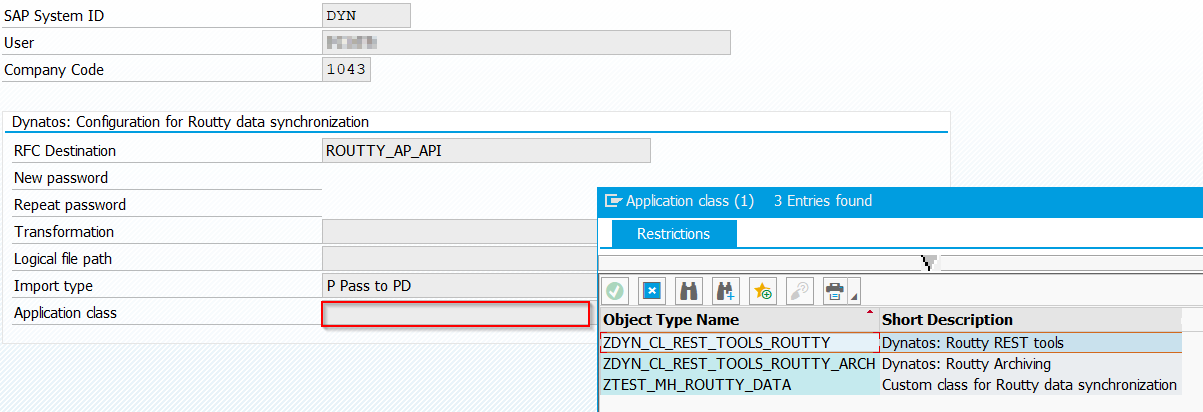
Application class |
Custom class with superclass ZDYN_CL_REST_TOOLS_ROUTTY
|
|
|
|

ZDYN_WS_ROUTTY_TARC Archive configuration
Transaction ZDYN_WS_ROUTTY_TARC or the right button in the report opens the maintenance dialog for the optional archive link settings where you select the Archive Document type to be used for images.
Only required when you have more than one archive document type defined for PDF or you don't pass the documents to PD.
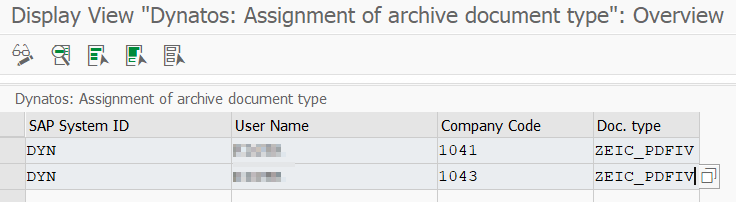
ZDYN_WS_ROUTTY_TMAP Process Director configuration
Transaction ZDYN_WS_ROUTTY_TMAP or the middle button in the report opens the maintenance dialog for the optional special settings when transferring the data to Process Director.
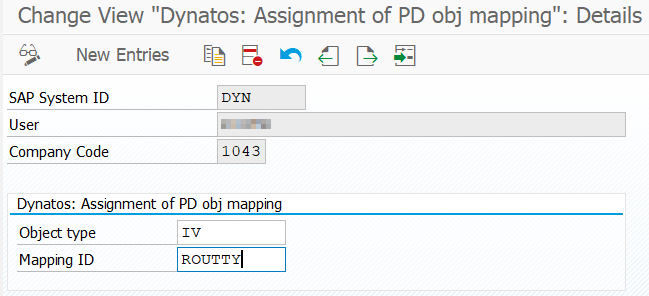
By default when nothing is configured or an empty value is entered an AP document is created (Object type IV) using Origin XB and Mapping ID ROUTTY is used.
In case a different document type should be created (Object type) or a different Mapping ID should be used, a corresponding entry needs to be placed here which then has to be configured in the Process Director mapping configuration and the external data model configuration.
Note: for e.g. remittance document handling Object type PA has to be used, for delivery notes DN,...
Report options
The report offers the following functions for a configured combination of ROUTTY Admin user and SAP Company Code (general configuration)

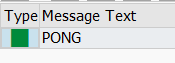
Check Connection: Only tries to ping the configured Routty server
Note: Message PONG when connection is established
Master data: Is pushing SAP master data to Routty for the selected Company Code
Retrieve Documents: Gets documents ready for download and is processing them as defined in the general configuration
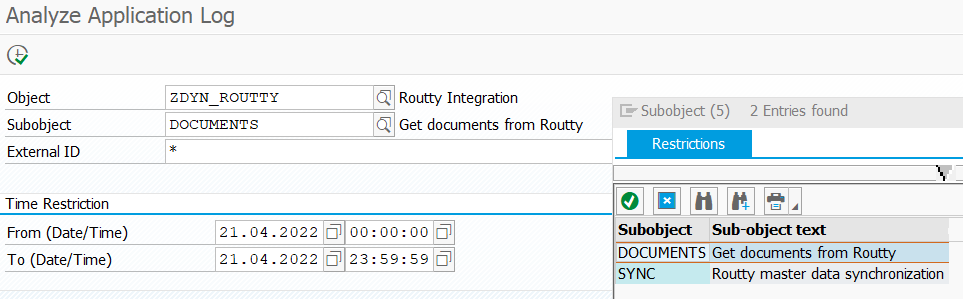
All generated messages can be stored in an Application log, which is recommended for background processing by ticking the checkbox Appl. log enabled.
Application Log Object ZDYN_ROUTTY is defined with Subobject
-
SYNC for master data population to Routty
-
DOCUMENTS for documents downloads from Routty
Master data
When selecting option Master data you get a selection screen after pressing enter where various SAP data can be synchronized to Routty.
All changes will generate corresponding messages (number of entries Added, Changed, Deleted).
When nothing is selected for a data type, no synchronization is triggered.
Value helps exist to simplify entering selection criteria.
Company Codes can be uploaded as Party. Selected Company code is used to identify the corresponding party. For company code specific master data, first the company code needs to be synchronized.
The first setting setting is general as well:
|
Field |
Description |
|
Language by priorities |
Used in specific master data that includes language dependent description, like Cost Center, G/L Account, Currency, Terms of Payment and Tax Code. The current user logon language will be used if this field is empty. Multiple values are possible, where the first one from the top has the highest priority, so when a text for this language is available, it will be used, otherwise the next language is considered. |
|
Data type |
Description |
|
Company Code |
Selected company codes are pushed as Party to Routty. Note: works independent from the selected company code
|
|
Currency |
Selected currencies are pushed to ROUTTY.
|
|
Payment Terms |
Selected payment terms are pushed to ROUTTY.
|
|
Tax Code |
Selected TAX codes are pushed to ROUTTY.
|
|
General Ledger Accounts |
Selected GL-Accounts from the optionally selected company code are pushed to ROUTTY.
|
|
Cost Center |
Selected cost centers from the optionally configured company code are pushed to ROUTTY.
|
|
WBS element |
Selected WBS elements from the optionally configured company code are pushed to ROUTTY as values for custom fields DIMENSION1-8. One of these options need to be chosen.
|
|
Order |
Selected internal orders from the optionally configured company code are pushed to ROUTTY as values for custom fields DIMENSION1-8. One of these options need to be chosen. For delta synchronizations the date of last change should be used. Then the selected internal orders are filtered if they are new or have been changed since the selected date.
|
|
Vendor |
Selected vendors from the optionally configured company code are pushed to ROUTTY.
When Replace bank details with is checked, the bank details will replace all existing entries. It’s selected by default. For delta synchronizations the date of last change should be used. Then the selected vendors are filtered if they are new or have been changed since the selected date.
When the Date of last change is populated or when the Take inactive flag is selected, blocked or deleted vendors will also be taken. |
|
Customer |
Selected customers from the optionally configured company code are pushed to Routty.
For delta synchronizations the Date of last change should be used. Then the selected customers are filtered if they are new or have been changed since the selected date.
When the Date of last change is populated or when the Take inactive flag is selected, blocked or deleted customers will also be taken. |
|
Purchasing Documents |
Selected purchase orders from the optionally configured company code are pushed to ROUTTY.
|
Recommendations for the synchronization of purchase orders.
Initial load with selection of purchase documents
-
using number ranges (or *)
-
using Created on date range
All matching purchase orders for the selected company code are pushed to ROUTTY
Delta run selecting only changed purchase documents
-
using number ranges (or *)
-
using Date of last change
All new, changed purchase orders or orders where a delivery or invoice entry has happened are synchronized to ROUTTY
Note: When using the current date as Date of last change, the day before is used as selection criteria to enable a proper selection of all modifications using a scheduled report run using the current date as value.
General Note: when using the Replace with flag a new initial run needs to be performed.
Retrieve Documents
When using this option, documents from Routty that are ready for download are processed according the general configuration import option.

Note: currently documents for all parties are processed.
Test options
There are various options available that can help during implementation and testing phases.
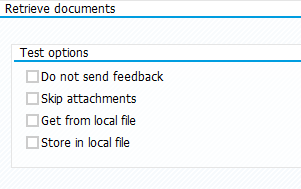
Do not send feedback
Normally, when a document is retrieved without errors a feedback is send to the Routty system, which changes its status there. Such a document will not be available during the next request anymore. It is possible to suppress it for test purposes, such that the same document would be available many times and the data flow in SAP could be verified and improved.
Skip attachments
The archiving system in SAP may not be ready at the initial phase of implementation. Errors can be raised in such cases. To avoid them, attachments can be temporarily skipped.
Get from local file
For testing purposes a local file with XML document can be used instead of actual documents from Routty.
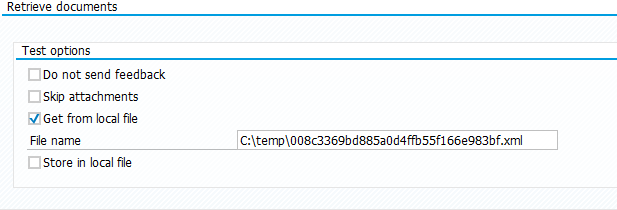
In this case the process runs according to the configuration, only the document will be taken from the file. The GUID field from the file content will be taken as the document GUID.
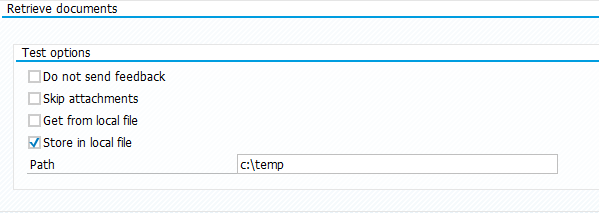
Store in local file
The data being sent from Routty can be stored in a local file. It can be then reviewed or used as a data source for the Get from local file option. The file name will be created based on the document GUID. This way the file can be used multiple times to verify the process on the SAP side without interaction with Routty.
Enhancements
Enhancement Options
For special requirements the following options for project specific adjustments are available:
Custom XSLT transformations
It is possible to simply copy the standard XSLT transformations in package ZDYN_WS_ROUTTY using transaction SE80
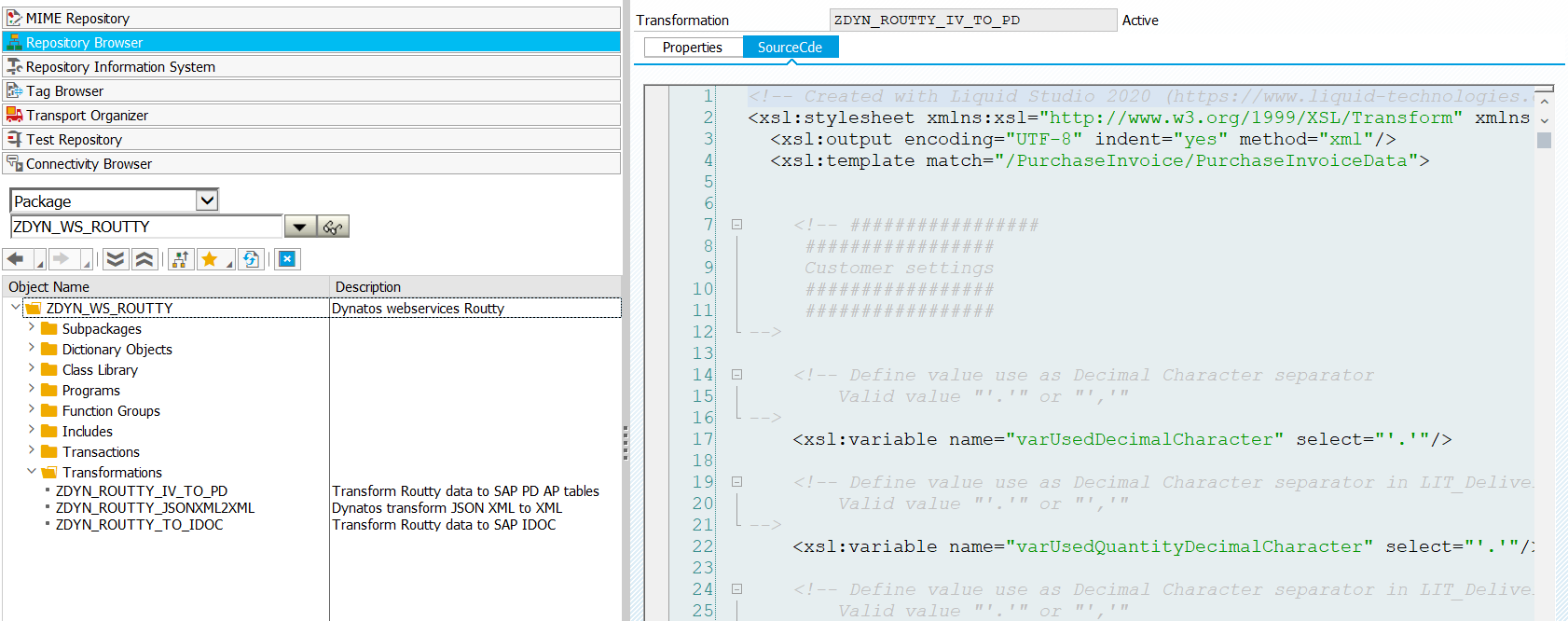
The copied transformation can be adjusted to extract additional Routty fields, either by population of the custom field tab or by direct population of any fields available (see subsections below).
The adjusted transformation can be tested in SAP transaction XSLT using a downloaded XML example data file from Routty as input and use the View HTML as output.
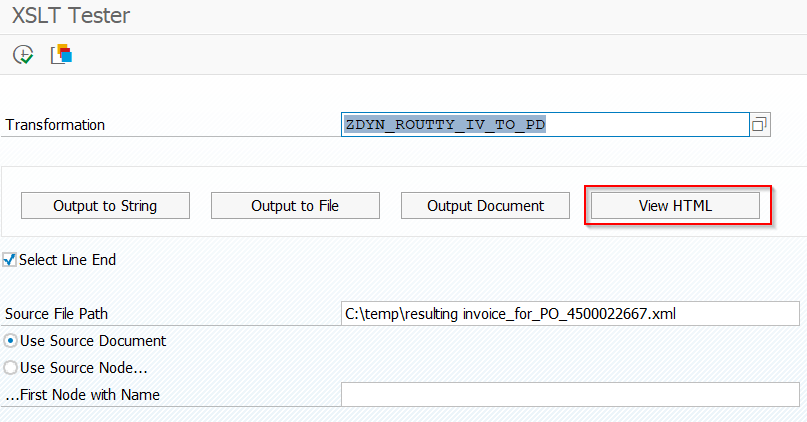
The new transformation then has to be entered in the general configuration as Transformation.
Similar the ZDYN_ROUTTY_TO_IDOC_V2 transformation can be improved to populate additional segments, use a different logical system or create a totally different IDOC.
Custom field tab
Custom fields can be added to the TAB_CUSTOM segment in the standard XSL transformation.
<!-- add here some custom fields -->
<TAB_CUSTOM>
<CUSTOMVALUES>
<NAME>ZZFIELDNAME</NAME>
<VALUE>ThisISaValue</VALUE>
</CUSTOMVALUES>
</TAB_CUSTOM>
Additional entries <CUSTOMVALUES><NAME>...</NAME><VALUE>...</VALUE></CUSTOMVALUES>
can be added here.
There is already a logic implemented in the standard transformation, where header fields DIMENSION1 to DIMENSION8 are automatically added to the TAB_CUSTOM, with NAME equal DIMENSIONx.
Such fields can be mapped in PD, where for example for DIMENSION1 field the mapping can look like this (Process Director mapping configuration):

Custom item fields ZFIELD1-ZFIELD6 are also handled. They are automatically mapped in the standard transformation as DIMENSION1-6 fields and can be then used in the Process Director mapping configuration.
When standard Z*/DIMENSTION* field mechanism is used, no transformation copy is required – the mechanism is handled by the existing transformation.
Additional standard/custom fields
If the PDAP application is present in the SAP system, it is also possible to directly use fields in the XSLT transformation that exist in the PDAP data structures. It is possible to use this mechanism on header, item, account and tax data levels, with fields available in the following structures:
/COCKPIT/SACCT_EXT
/COCKPIT/SHDR_EXT
/COCKPIT/SITEM_EXT
/COCKPIT/STAX_EXT
If for example PurchaseInvoiceHeader/BvTyp field is provided from Routty, it could be mapped like this in the XSLT transformation:
<BVTYP>
<xsl:value-of select="PurchaseInvoiceHeader/BvTyp"/>
</BVTYP>
and the following way in the PDAP mapping (Process Director mapping configuration):

This mechanism requires a modified transformation copy, as it works with specific fields that do not exist in the standard transformation.
Access to the fields is described in Technical information for custom logic, XSLT transformation and for field mapping.
Custom class
It is possible to create a project specific class that inherits from the standard class ZDYN_CL_REST_TOOLS_ROUTTY. So simply create a new class and use ZDYN_CL_REST_TOOLS_ROUTTY as Superclass
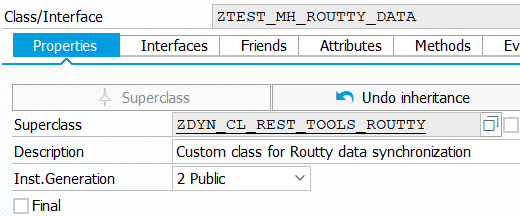
In this class the required methods can be redefined to implement custom logic.
Especially for implementing a new SAP BAPI call logic, method TRANSFER_DATA_TO_SAP needs to be redefined.
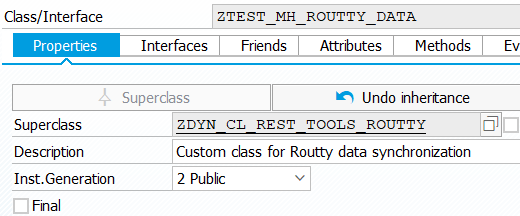
This new class can be selected in the general configuration to replace the standard implementation class
Technical information for custom logic, XSLT transformation and for field mapping.
|
Class attribute name |
Description |
|
MST_CONFIG |
Current configuration settings |
|
MST_PDIV_DOCUMENT |
Complex structure with SAP document data |
|
MR_ATTACHMENT->MT_ATTACHMENTS |
Table with attachment data |
Structure of attribute MST_CONFIG
|
Fieldname |
Description |
|
BUKRS |
Company Code |
|
USERNAME |
User Name for the API calls |
|
XSLT |
Name of the XSLT transformation |
|
IMPORTFILE |
Logical path name |
|
IMP_TYPE |
Dynatos: API Import processing |
Structure of attribute MST_PDIV_DOCUMENT
|
Fieldname |
Description |
|
GUID |
Document GUID |
|
STENR |
VAT tax number |
|
STCEG |
Tax number |
|
IBAN1 |
IBAN |
|
VENDOR_NO |
Vendor No. |
|
COMP_CODE |
Company Code |
|
INVOICE_IND |
Invoice indicator |
|
REF_DOC_NO |
Invoice number/reference document |
|
DOC_DATE |
Invoice date/document date |
|
PO_NUMBER |
Purchase Order No. |
|
CURRENCY_ISO |
Currency |
|
NET_AMOUNT |
Net Amount |
|
DEL_COSTS |
Delivery costs |
|
GROSS_AMOUNT |
Gross Amount |
|
LFSNR |
Delivery note |
|
PAYMT_REF |
Payment Reference |
|
BLINE_DATE |
Baseline date |
|
PSTNG_DATE |
Posting date |
|
HEADER_TXT |
Header text |
|
CP_DOC_TYPE |
PD AP document type |
|
ESRRE |
ISR Reference Number |
|
QRIBAN |
Swiss QRIBAN |
|
GLO_RE1_OT |
Country specific Reference |
|
TAB_ITEM |
Table with item data |
|
TAB_ACCOUNT |
Table with accounting data |
|
TAB_TAX |
Table with tax data |
|
TAB_CUSTOM |
Table with custom fields |
|
TAB_PROCESSLOG |
Message from ROUTTY (not yet used) |
Structure of attribute table MST_PDIV_DOCUMENT-TAB_ITEM
|
Fieldname |
Description |
|
PO_ITEM |
Purchase Order Item No. |
|
PO_NUMBER |
Purchase Order No. |
|
MATERIAL |
Material Number |
|
ITEM_TEXT |
Item text |
|
QUANTITY |
Quantity |
|
PO_UNIT_ISO |
Unit of Measure |
|
ITEM_AMOUNT |
Item unit price |
|
GROSS_AMOUNT |
Gross amount |
|
LFSNR |
Delivery note |
|
POS_NO |
Invoice Item No. |
|
ZFIELD1 |
Custom field 1 |
|
ZFIELD2 |
Custom field 2 |
|
ZFIELD3 |
Custom field 3 |
|
ZFIELD4 |
Custom field 4 |
|
ZFIELD5 |
Custom field 5 |
|
ZFIELD6 |
Custom field 6 |
Structure of attribute table MST_PDIV_DOCUMENT-TAB_ACCOUNT
|
Fieldname |
Description |
|
GL_ACCOUNT |
General Ledger account |
|
NET_AMOUNT |
Net amount |
|
GROSS_AMOUNT |
Gross amount |
|
COSTCENTER |
Cost Center |
|
ORDERID |
Internal Order |
|
PROFIT_CTR |
Profit Center |
|
TAX_CODE |
Tax code |
|
TAX_AMOUNT |
Tax amount |
|
TAX_RATE |
Tax rate |
|
TAXJURCODE |
Tax jurisdiction code |
Structure of attribute table MST_PDIV_DOCUMENT-TAB_TAX
|
Fieldname |
Description |
|
TAX_CODE |
Tax code |
|
TAX_RATE |
Tax rate |
|
TAX_AMOUNT |
Tax amount |
|
TAXJURCODE |
Tax jurisdiction code |
Structure of attribute table MST_PDIV_DOCUMENT-TAB_CUSTOM
|
Fieldname |
Description |
|
NAME |
Name of the custom field |
|
VALUE |
Value of the custom field |
Access to dynamic fields is available through the MO_PDIV_DOCUMENT object reference.
For example:
mo_pdiv_document->set( EXPORTING ic_name = 'FIELDNAME'
i_value = lc_value ).
mo_pdiv_document->get( EXPORTING ic_name = 'FIELDNAME'
IMPORTING e_value = lc_value ).
It contains all the fields from the MST_PDIV_DOCUMENT structure plus all the fields from /COCKPIT/S*_EXT structures mentioned in Additional standard/custom fields.
Useful helper methods
ARCHIVE_ATTACHMENT_DATA
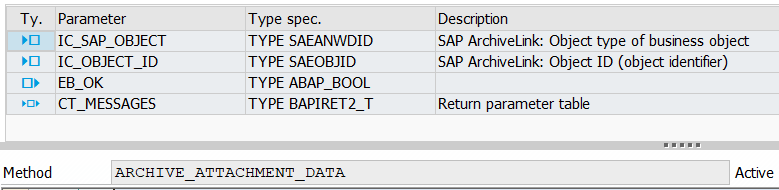
This method is archiving the attachments from attribute table MR_ATTACHMENT->MT_ATTACHMENTS using SAP ARCHIVE LINK technology and connects the archive document to the specified SAP business object IC_SAP_OBJECT with object identifier IC_OBJECT_ID.
ADD_SYSMSG_TO_BAPIRET2

Add the system message to the general message table of type BAPIRET2
ADD_MSG_TO_BAPIRET2
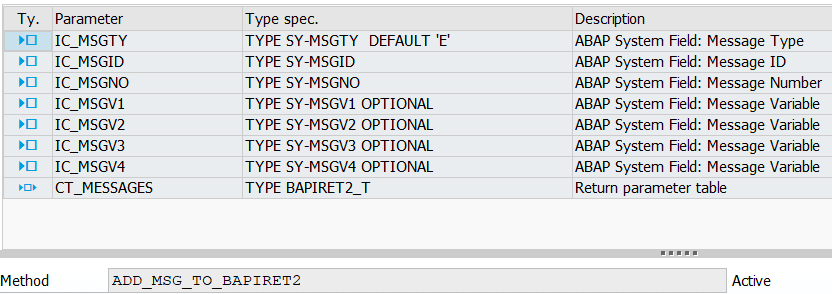
Adds a specified message to the message table
System diagram
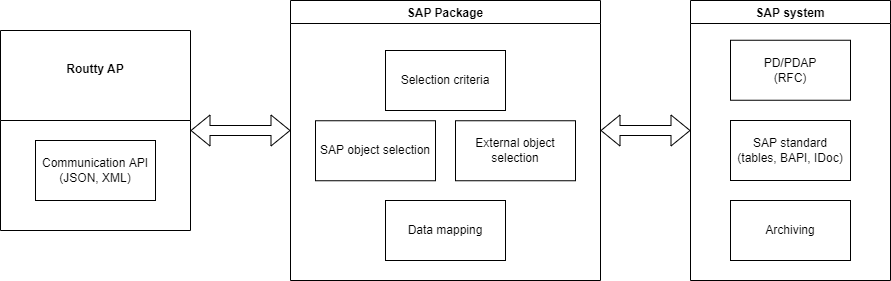
Communication between SAP Package and Routty via HTTPS REST calls
SAP Package has full access to the SAP system as it's installed inside SAP.